An internal tool that warns Apple’s support team before a shop’s Apple Pay breaks: what is about to expire, who can fix it, and exactly what is wrong.
UX/UI designerTeam of 208 months · 2026
01Background
It started with complaints nobody could explain.
Shops kept writing to Apple’s Developer Support with the same message: Apple Pay stopped working, and nobody had changed anything.
Often the cause was a digital key, made two years earlier, that had quietly expired. Support found out only after shoppers couldn’t pay, and had to piece the story together from scratch.
An internal Apple tool under NDA. Shops, names, screens and the numbers in them are illustrative. The usability testing results are real.
02Context
Apple Pay depends on three things that expire.
The shop’s ID keyMerchant Identity certificate · 25 months7 days left
The payment keyPayment Processing certificate · 25 months11 days left
1No one has seen the renewal noticeIt went to ops@harbor.example, last opened 14 months ago.
2Who can renewNotify all
OAops@harbor.exampleAccount emailUnread
MKMaya KimDeveloper account adminNot told
RTRavi ThomasPayment providerNot told
3Escalation
30 daysEmail to accountDelivered, not opened
15 daysEmail to accountDelivered, not opened
7 daysAll admins and providerDue today
2 daysDeveloper Support calls Maya Kim1 Nov, if nobody answers
3/5 · Old key revoked too early
Revoke waits until it’s safe.
Tried firstA warning in the support tool. The mistake happens in the shop’s account, not ours.
Before
Support sees two certificates, each with a Revoke button that works straight away, and nothing says which one is still taking payments. A shop renewing in a rush can revoke the wrong one.
After
Only the shop can revoke, and in its own account Revoke stays locked until the new key is proven.
Merchants › Kite MobilitySearch
Certificates
Kite Mobility · merchant.app.kite
Certificate
Expires
Merchant IdentityCreated Oct 2024
10 Nov 2026
Revoke
Merchant IdentityCreated 23 Oct 2026
23 Nov 2028
Revoke
Rotations › Kite MobilitySearch merchants⌘K
Certificate rotation
Kite Mobility · merchant.app.kite
2The merchant can’t revoke yetNo payment has used the new certificate.
1CurrentServing payments
Expires
10 Nov 2026
Last payment
2 minutes ago
NewUploaded, unused
Expires
23 Nov 2028
Last payment
None yet
Create the new certificate23 Oct, by the merchant
Install it on the payment serverSeen in a merchant validation request
First successful payment with itWaiting · usually within an hour of traffic
3Merchant revokes the old certificateUnlocks in their account after step 3
Key insightThe only proof a new key works is one real payment made with it.
4/5 · Website check fails silently
Run the same check Apple runs, and point at what failed.
Tried firstShow Apple’s raw result. “Verification failed” is all shops see today.
Before
The check says Verification failed, and nothing else. The shop retries blindly while the deadline gets closer.
After
Here the file sits behind a redirect. Support sees it 6 days before the deadline, while there is still time.
Merchants › Lumen BooksSearch
shop.lumenbooks.com
Lumen Books
Domain verification failedLast attempt 6 days ago.
Verify domain
Make sure the domain association file is available.
Verify again
Domains › shop.lumenbooks.comSearch merchants⌘K
shop.lumenbooks.com
Lumen Books · merchant.com.lumenbooks
What Apple will checkRun again
Verification file is published/.well-known/apple-developer-merchantid-domain-association200
1Served without a redirectRedirects to www.shop.lumenbooks.com, so Apple’s check fails without saying why301
SSL certificate renewedNew certificate valid until 4 Dec 2027OK
2Verification endsUnless the check passes before thenin 6 days
3Fix to send the merchant
Serve the file from shop.lumenbooks.com itself, with no redirect, then run the check again.
Send fix
5/5 · Support starts from zero
Every complaint comes with the full story.
Tried firstA form asking the shop for details. It asks the person who knows the least.
Before
The complaint just says it stopped working. Support replies asking for the merchant ID and domain, and a day is lost.
After
The complaint arrives next to the shop’s timeline, so the cause is clear before anyone replies: the ID key had expired at 08:00.
Tickets › #48213Search
#48213 · Apple Pay button stopped workingNew
AT
Atlas TicketsSince this morning the Apple Pay sheet opens and closes right away. Nothing changed on our side.09:41 · via Developer Support form
Reply
Thanks for reaching out. Could you share your merchant ID, the domain, and any errors you see in the console?
Send reply
Tickets › #48213Search merchants⌘K
#48213 · Apple Pay button stopped workingNew
1AT
Atlas TicketsSince this morning the Apple Pay sheet opens and closes right away. Nothing changed on our side.09:41 · via Developer Support form
3Suggested reply
Your Merchant Identity certificate expired at 08:00 UTC. Create a new one, install it on your server, and Apple Pay works again. Steps attached.
Send reply
2What happened
09:12Every Apple Pay session failingsince 08:03
08:00Merchant Identity certificate expired
Last weekExpiry reminder to the account emailNot opened
Sep 2024Certificate created
08Usability testing
Support tried it before launch.
Who
6 people: 4 Developer Support specialists, a senior support advisor and a technical escalation lead.
How
Remote, moderated sessions of about 45 minutes, on an interactive high-fidelity prototype built in Sketch. Two rounds of three.
Compared
The same five tasks, first in today’s tools, then in Merchant Health.
90%of 30 task attempts completed
81%faster to find shops at risk
50% → 83%diagnosed correctly on the first try
84SUS score, out of 100
6 of 6preferred it to today’s tools
Time per task
TaskCompletedTime: today’s tools vs Merchant Health
Find shops at risk6/63m 40s42s
Find who can renew5/64m 10s1m 12s
Swap a key safely5/65m 30s1m 48s
Explain a failed check6/64m 20s54s
Answer a complaint5/66m 10s1m 34s
What they said Paraphrased
“I can see what’s about to expire without checking multiple places. It makes prioritising much easier.”
Support specialist
“Knowing the new certificate is working before the shop revokes the old one gives me much more confidence.”
Senior support advisor
“Instead of just seeing a failure, I can understand what went wrong.”
Technical escalation lead
“Having the shop’s history and certificate status together would save a lot of back and forth.”
Support specialist
From feedback to change
1 of 6 peopleTask 1 · Find shops at risk
Read an expiring key as one that had already expired.
Expiring and expired used colours that were too close.
✓
Sharper severity colours and expiry labels, so urgent rows stand out.
Finding, joining and organising a match should take as few steps as possible.
It started one Thursday evening. We were setting up a match, and again we were one short. I thought: why does something this simple need so much talking?
People weren’t tired of football. They were tired of the coordination around it. Players just wanted to find a match and join. Organisers were stuck writing to people, confirming who was in and filling last-minute gaps.
04User feedback
Two weeks with our own group.
Who
Players from our own weekly match, the people we actually play with.
How
A closed test around real weekly matches: creating and joining, inviting players, team chat.
Where
In the same WhatsApp group. Feedback came in as messages, the way everything else does.
Feedback and the design changes it led to
“There’s too much on the home page. I just want to see matches I can play today or tomorrow.”
→
A simpler home page: popular matches easier to see, upcoming match cards reorganised, repeated filters removed.
“I joined a match, but I can’t tell from the card. I have to open it again.”
→
Joined matches get their own state, so you can tell them apart right in the list.
“Finding matches on the map is nice, but switching between list and map should be easier.”
→
The map moved to a central, easy-to-reach spot on the main screen, and the day filters now match in list and map.
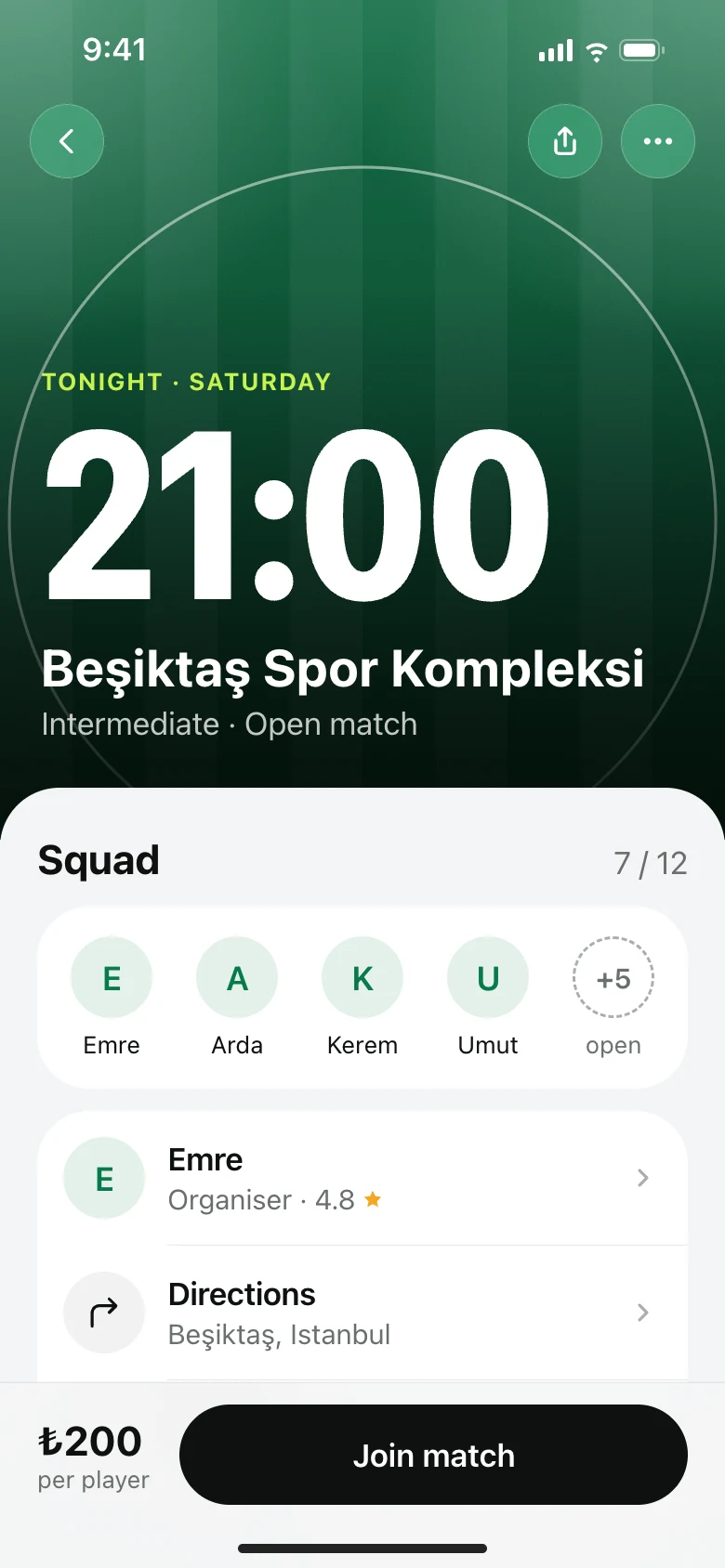
“There’s too much on the match screen. I want the time, how many are missing and the price.”
→
The pitch now leads, with the day and time just above it. The repeated location is gone, and the open spots are easier to see.
Key insightPeople didn’t want a new social platform. They wanted to organise something they already loved, with less effort.
05Low-fidelity wireframes
From wireframes to the first build.
One wireframe per step: find, join, joined, share, host and plan. They settled the layout and the order of information before any visual design.
FindMatches grouped by day.
JoinSquad, price, one button.
JoinedThe moment you’re in.
ShareBack to the group chat, as one link.
HostPitch, hour, fee. Done.
PlanOne pitch everyone can draw on.
Iteration: the match screen
Earlier iteration→
Final design
Earlier, a large kick-off time and the organiser’s star rating led the screen. Now the pitch leads, and the rating is gone.
06Visual identity
Four marks, one idea: a player in motion.
The logo changed three times before launch, from a runner to a lowercase mk.
First appA runner, mid-stride.
July 2026On green, with the ball.
12 Oct 2026In lime, the runner shaped into an mk.
TodayA lowercase mk. The runner’s head is the dot.
Every colour has one job
Page#FFFFFFBackgrounds.
Ink#171717Text and selected states.
Lime#CCF02FMain buttons and live states.
Lime ink#0A3622Type on lime, and team crests.
Green#00875AThe brand on maps and unread dots.
Amber#D97706A few spots left.
Rose#E11D48The last spot.
07High-fidelity designs
1/4 · Open matches can’t be found
Every open match in your city, day by day.
Before
Open matches only exist inside group chats. If you aren’t in the right group, you never hear about them.
After
Anyone in the city can find a game, without being in the right group.
Your next match, pinned above the list.
Spots left, shown when only a few remain.
Price per player, not the total pitch fee.
2/4 · Filling a spot means chasing people
Join the squad in one tap.
Before
A missing player means messages, forwards and waiting for someone to say yes.
After
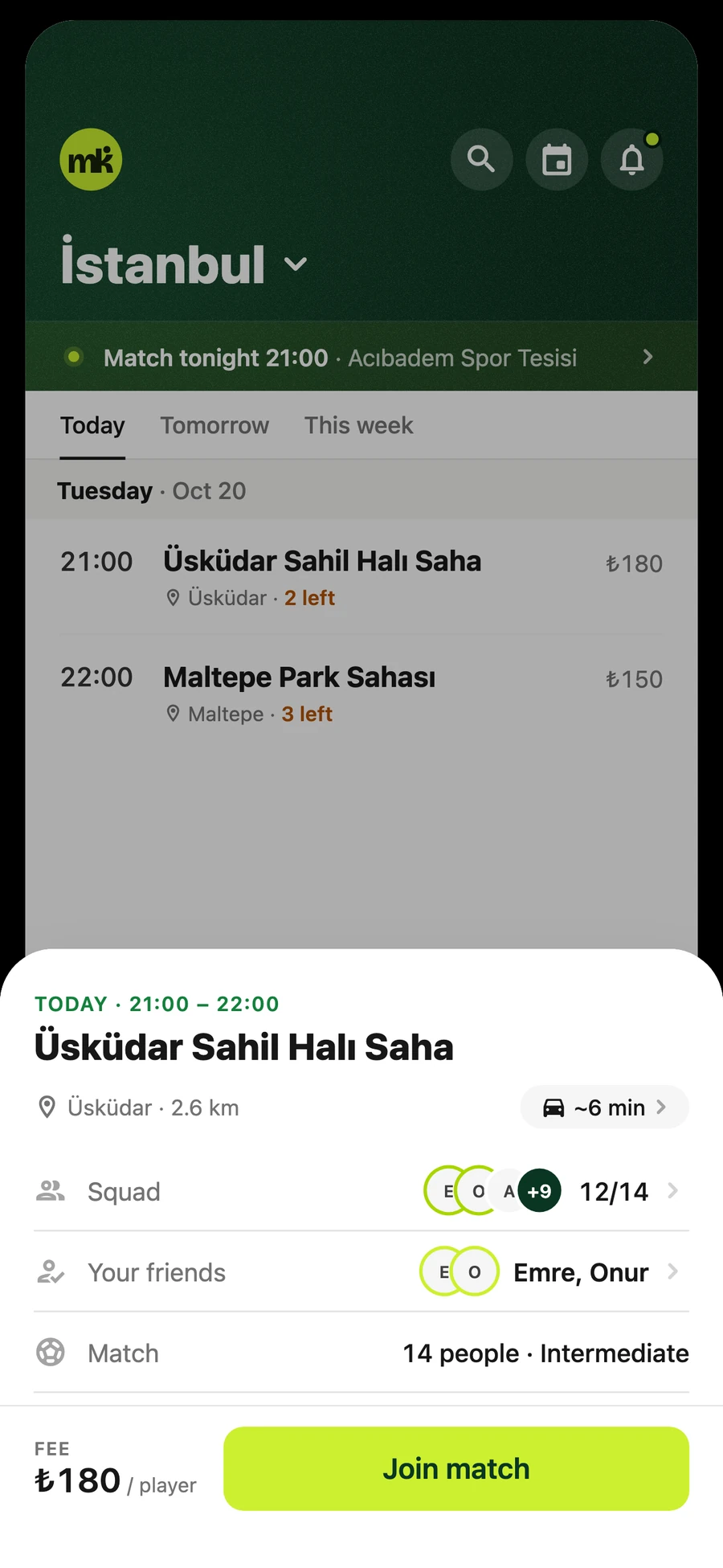
A match opens as a sheet with the squad, the friends already going and the price per player.
Squad count and the friends already in.
Distance and travel time to the pitch.
Join, the one action on the screen.
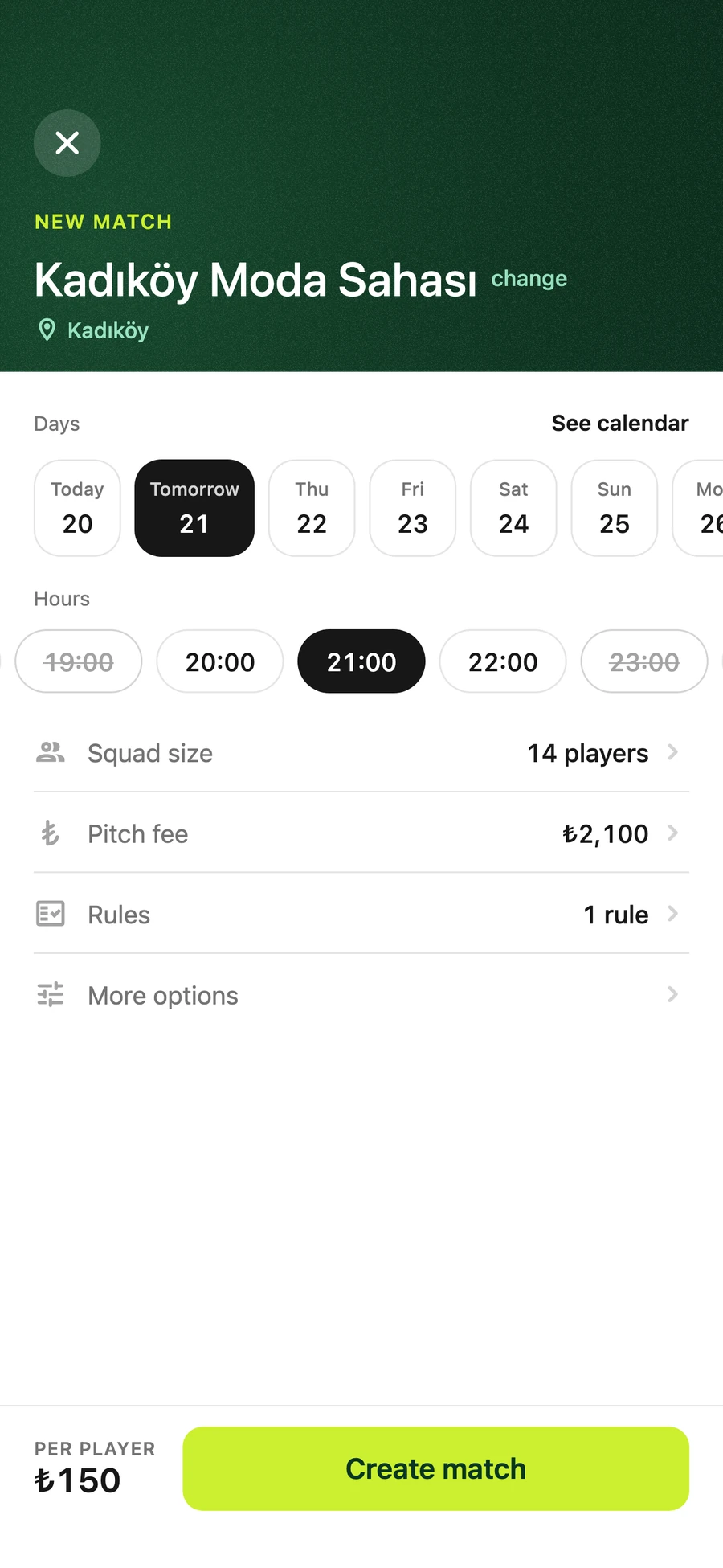
3/4 · Splitting the fee by hand
Host a match, priced per player.
Before
The organiser works out each share by hand and posts it in the chat.
After
Pick a registered pitch, a day and a free hour. Enter the pitch fee once, and it is divided by the squad size.
Hours already booked at the pitch are struck through.
Rules and more options stay optional, below the fee.
Price per player shown before you create the match.
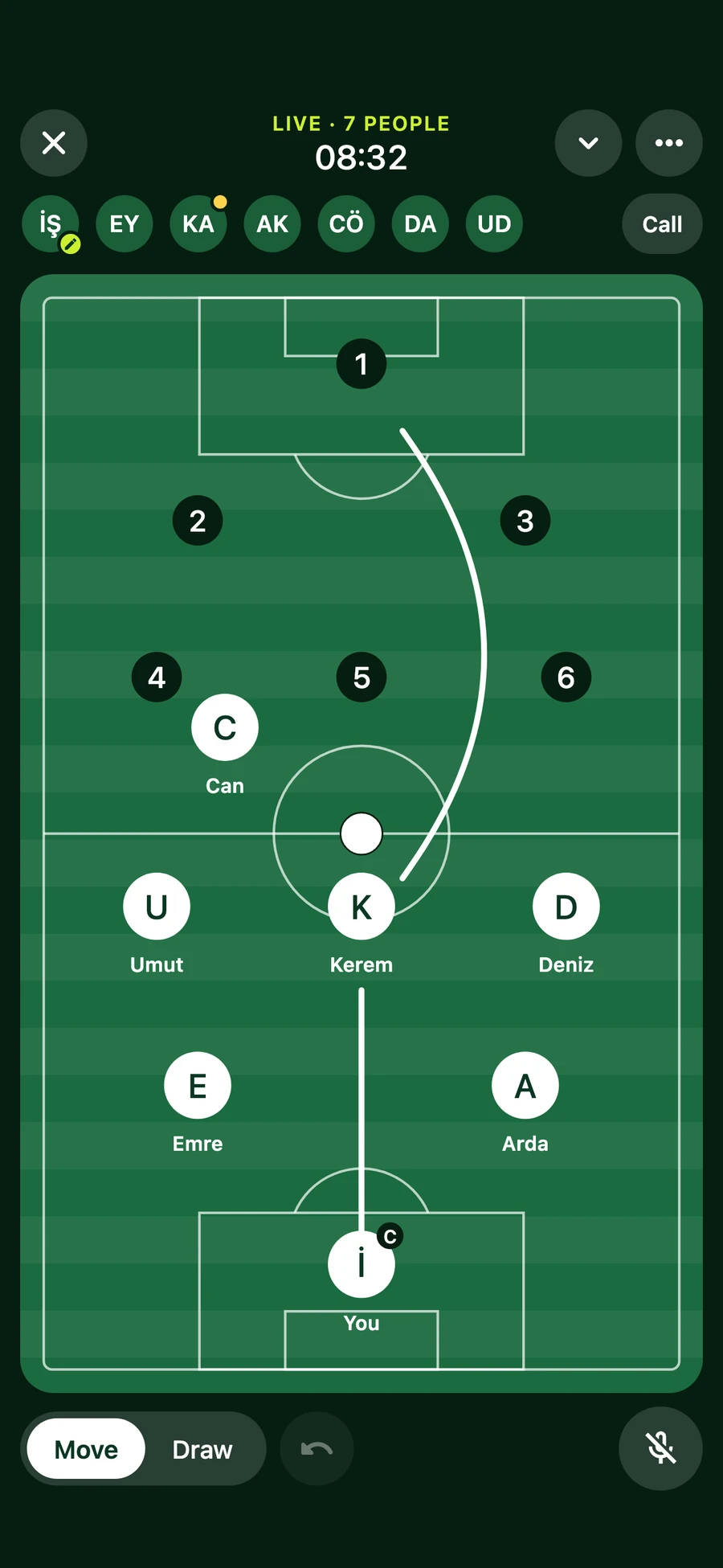
4/4 · The plan lives in one person’s head
The Match Board: who plays where, settled.
Before
In the group chat, positions are a thread of “you play there, I’ll play here” that nobody can picture, and it starts again at the pitch.
After
Everyone opens the same pitch, live. The captain moves players and draws the plan while the team talks, so the line-up is agreed before kick-off.
Everyone in the session, live at the top.
Move players and draw the plan on one shared pitch.
Talk it through in the built-in call, without leaving the app.
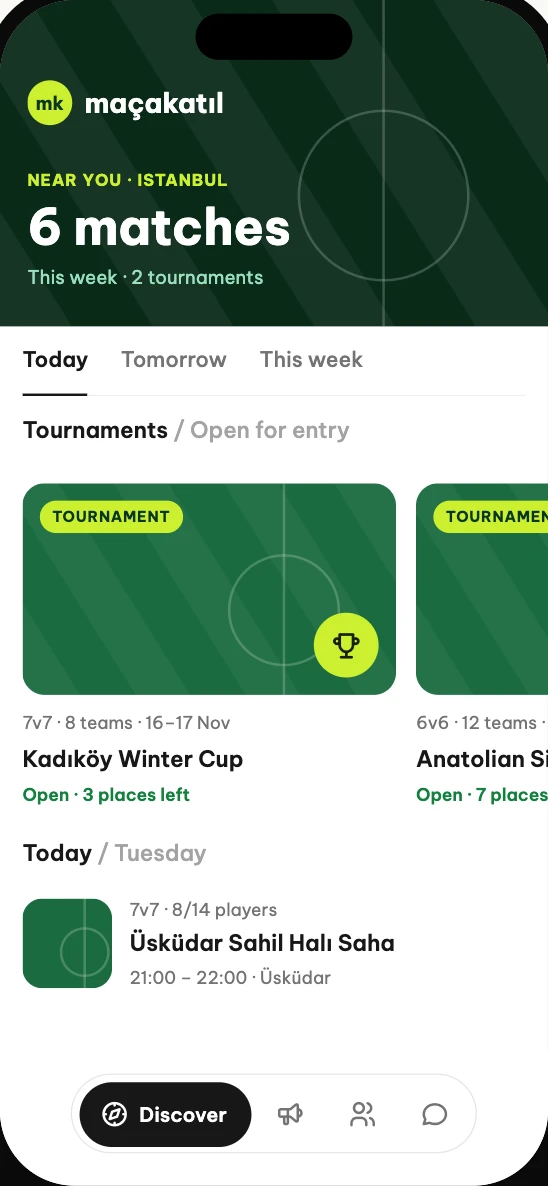
What’s next: tournaments
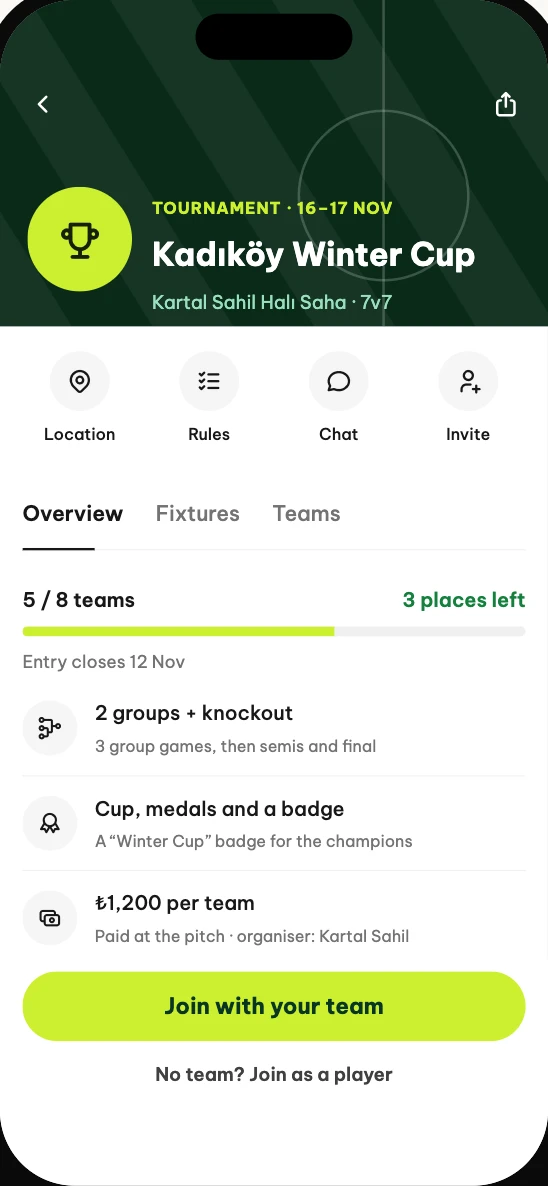
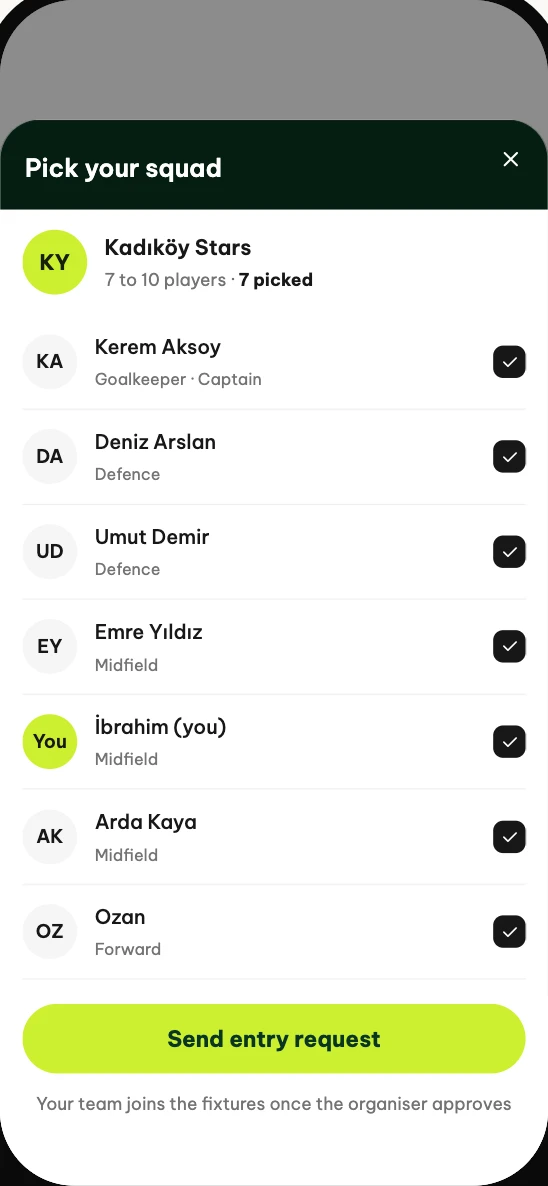
Drawn, not built yet. An organiser publishes a tournament; teams or single players enter, pick a squad and follow the fixtures.
Tournaments in Discover
The tournament
Pick your squad
08Outcomes
11,000Active users, with new players joining every day.
100,000The goal, by August 2027.
3,700+Pitches across Türkiye, listed in the app.
09Learnings
01Real data, or an honest empty state
The live app never fills a quiet city with sample matches; it says plainly that nothing is on yet.
02Start from your own group
The idea, the test and the feedback all came from the people we play with every week.
Next stepCollect feedback in the app
Now that it’s live, feedback should come from inside the app, not only our group chat.
At Apple my days were full of meetings, and I kept joining them late.
My manager mentioned a Mac app that put meetings in the notch. The idea clicked: the notch is right where you look. But I wanted more from it, so I started on my own.
02Concept
Make the notch the place where small things happen.
1MeetingsBefore a call.
2JoiningWhen it starts.
3MessagesWhen someone writes.
4TranslationWhen it isn’t your language.
5BatteriesWhen a device connects.
6FilesWhen you move a file.
7HomeAny time you look up.
03Low-fidelity wireframes
What the notch shows, and where.
Before any visual design, I sketched each need to settle the layout and how much room the notch takes.
MeetingsThe closed notch, widened for a meeting.
JoiningAt start time, Join is right there.
MessagesA message, answered from the notch.
TranslationRead it without leaving the page.
BatteriesSeveral devices, one card.
FilesThe notch, opened as a place to drop.
HomeThe notch, grown into a panel of cards.
04Visual identity
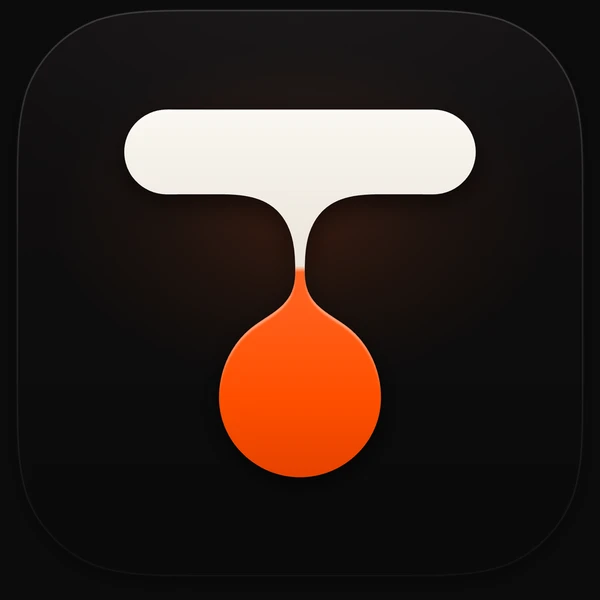
A new mark: the notch, and what comes out of it.
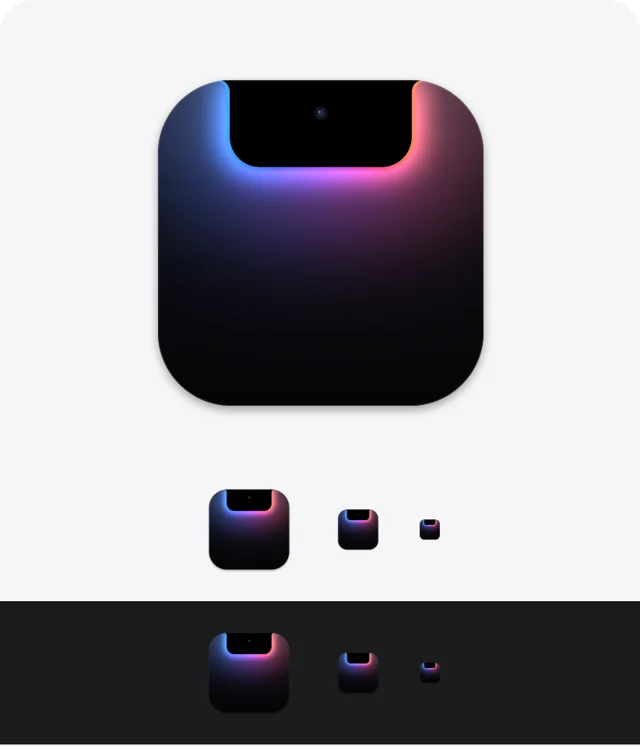
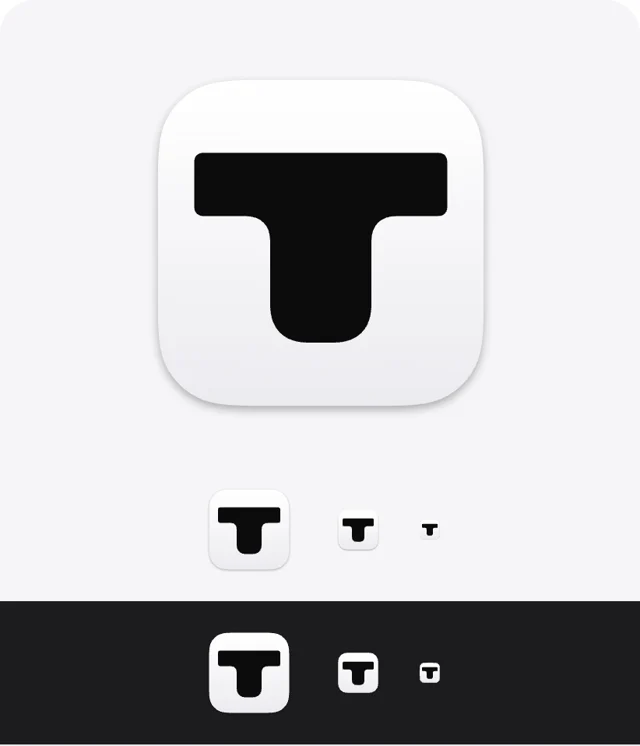
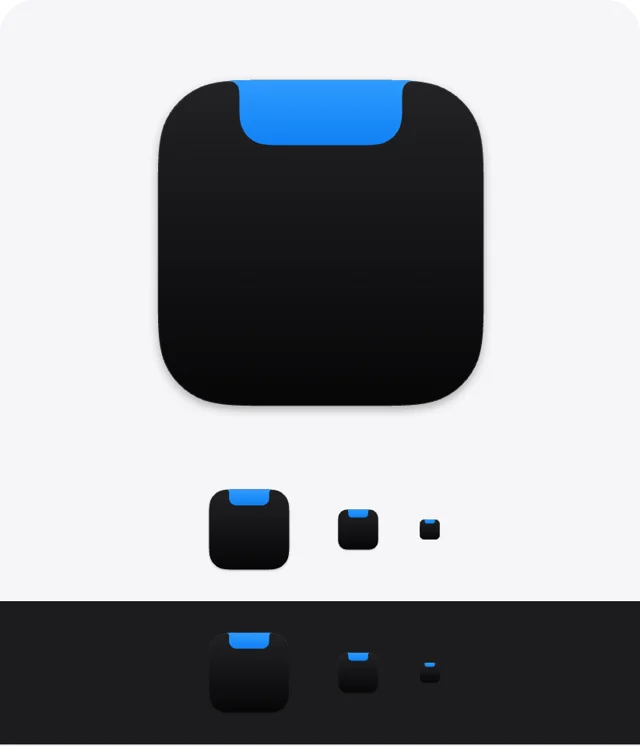
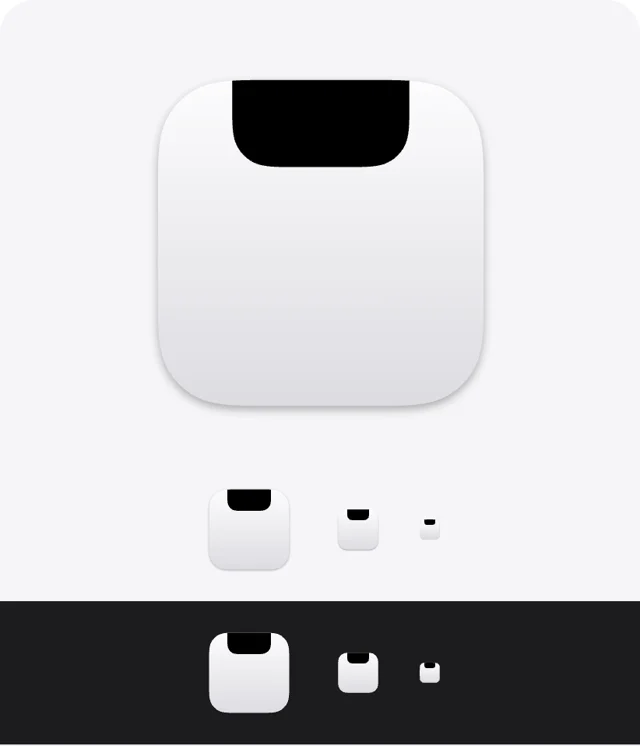
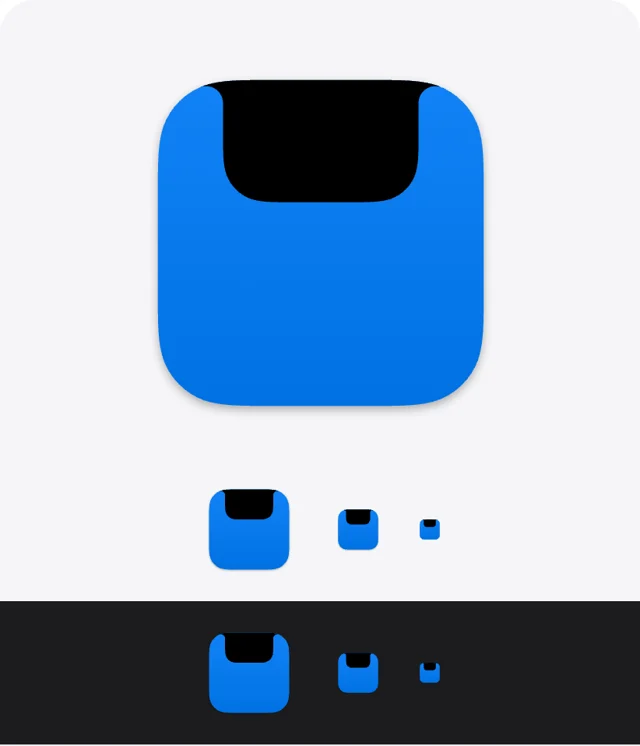
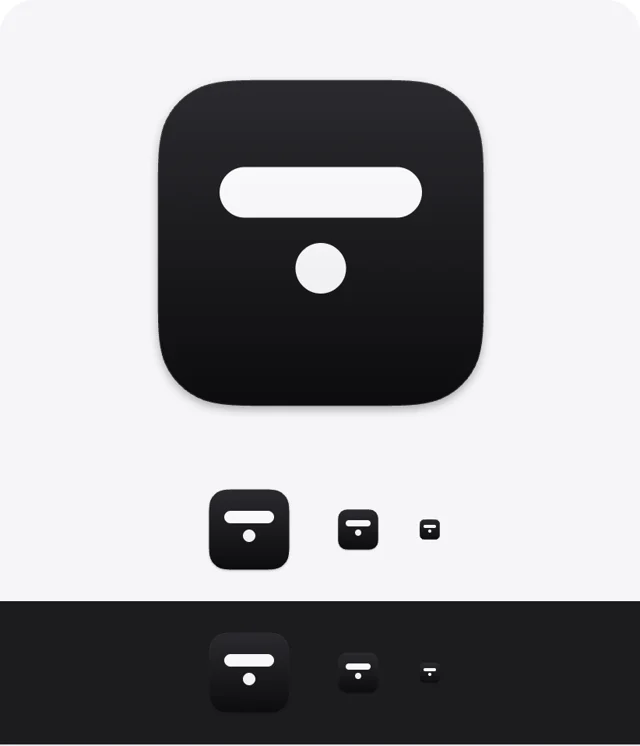
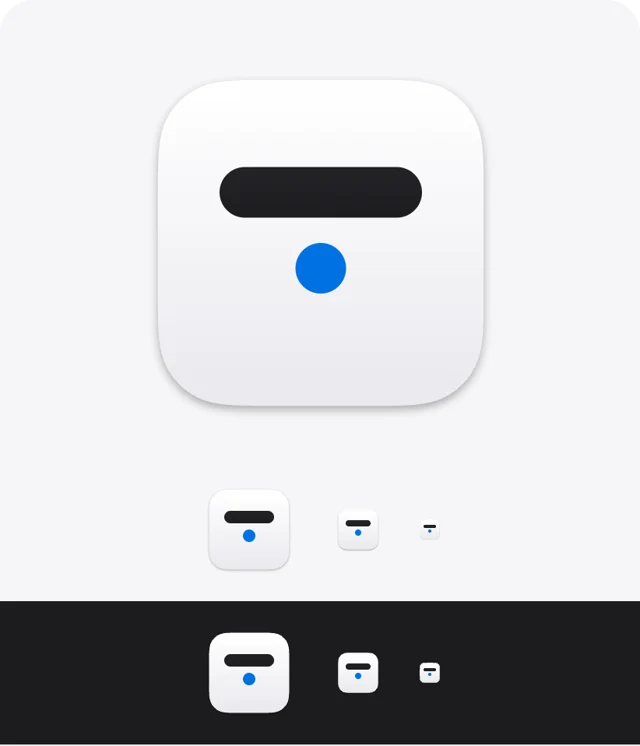
The first icon was a dark screen with a glowing notch. Before redrawing it, I put eight directions side by side, each at full size and at Dock size, on light and on dark. The new mark joins two of them: the notch as the bar of a T, and the dot, now a drop of orange.
Directions
BeforeThe first icon, for comparison.
A · The notch as a TThe top edge and the notch make a T, on a dark body.
B · The same T, lightThe same idea on a light body.
C · A lit notchOne coloured notch on a black body.
D · Screen and notchA light screen with a black notch.
E · The notch, openedThe open notch’s outline on one colour.
F · A bar and a dotThe notch, and what comes from it.
G · Bar and dot, lightThe same idea the other way round.
The new mark
App iconThe bar of the notch, and a drop of orange.
MarkIn ink, on light.
Two coloursThe drop in orange.
On darkIn cream, with the orange drop.
Colour
Ink#0B0B0CThe icon’s body and the mark.
Orange#FF4F00The drop: the one accent.
Cream#F7F3ECThe mark on dark.
05High-fidelity designs
1/7 · Meetings
Never late to a call.
Before
A notification slides by, and it’s gone.
After
The notch says how many minutes are left, then counts the last one down in seconds.
A calendar icon, then the meeting’s name.
Seconds left, in large white type, red for the last ten.
“Starts in” in grey, so the number leads.
2/7 · Joining
Join straight from the notch.
Before
When the meeting starts, the link is in an email or the calendar, a few clicks away.
After
At start time the notch says “Starting now”, with a Join button that opens the call.
The meeting, still on the left.
Join in green, the colour of a call.
Works with Zoom, Meet, Teams, Webex and FaceTime links.
3/7 · Messages
Reply without leaving your work.
Before
A message slides in, and answering means opening the app and losing your place.
After
Texts from Messages, WhatsApp and Telegram show under the notch, with Reply beside them.
The app’s icon, so you know where it came from.
Reply sits where Join does, so it feels familiar.
Close it, and your work is where you left it.
4/7 · Translation
Read it in your language.
Before
Words in another language mean copying them into a translator in the browser.
After
Highlight words and choose Translate, and the notch shows them in your language. On macOS 14 and 15, it opens Google Translate instead.
The language it came from.
The translation, in the notch.
Copy it in one click.
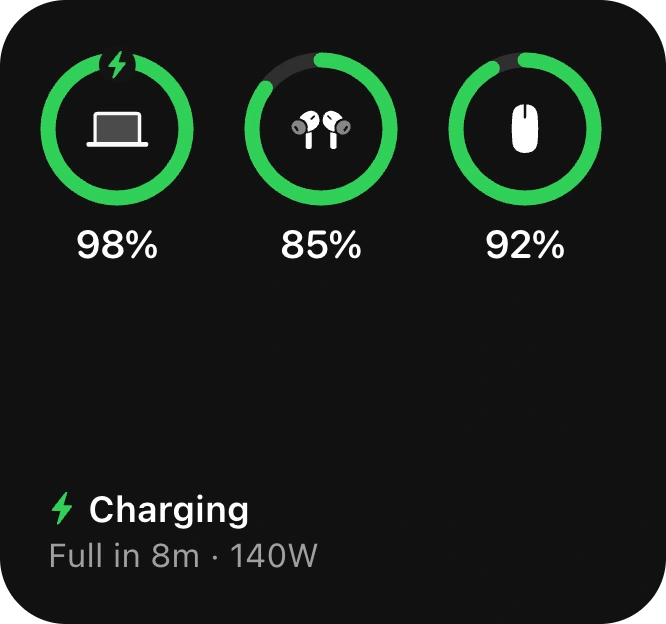
5/7 · Batteries
Every battery, in one look.
Before
The Mac, the AirPods and the mouse each keep their battery in a different menu.
After
One card, with a ring for each device.
Each ring fills to the charge left.
Time to full, and the charger’s wattage.
New devices appear on their own.
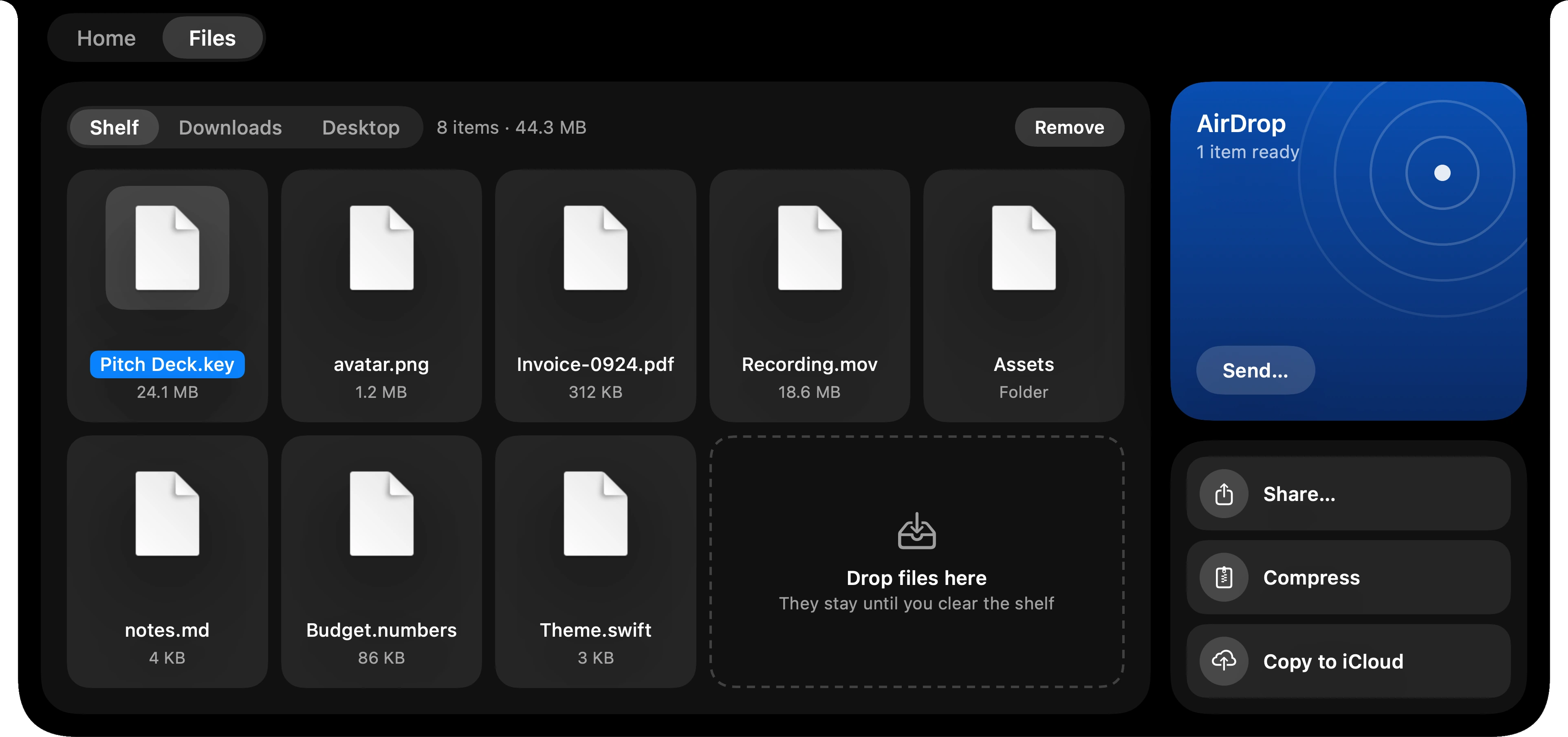
6/7 · Files
A shelf for files in transit.
Before
A file moving between apps lands on the desktop and stays there.
After
Drag it to the top of the screen and the notch opens into Shelf. It waits there until you need it.
Shelf, Downloads and Desktop, one click apart.
AirDrop, one step away.
Compress or copy to iCloud in place.
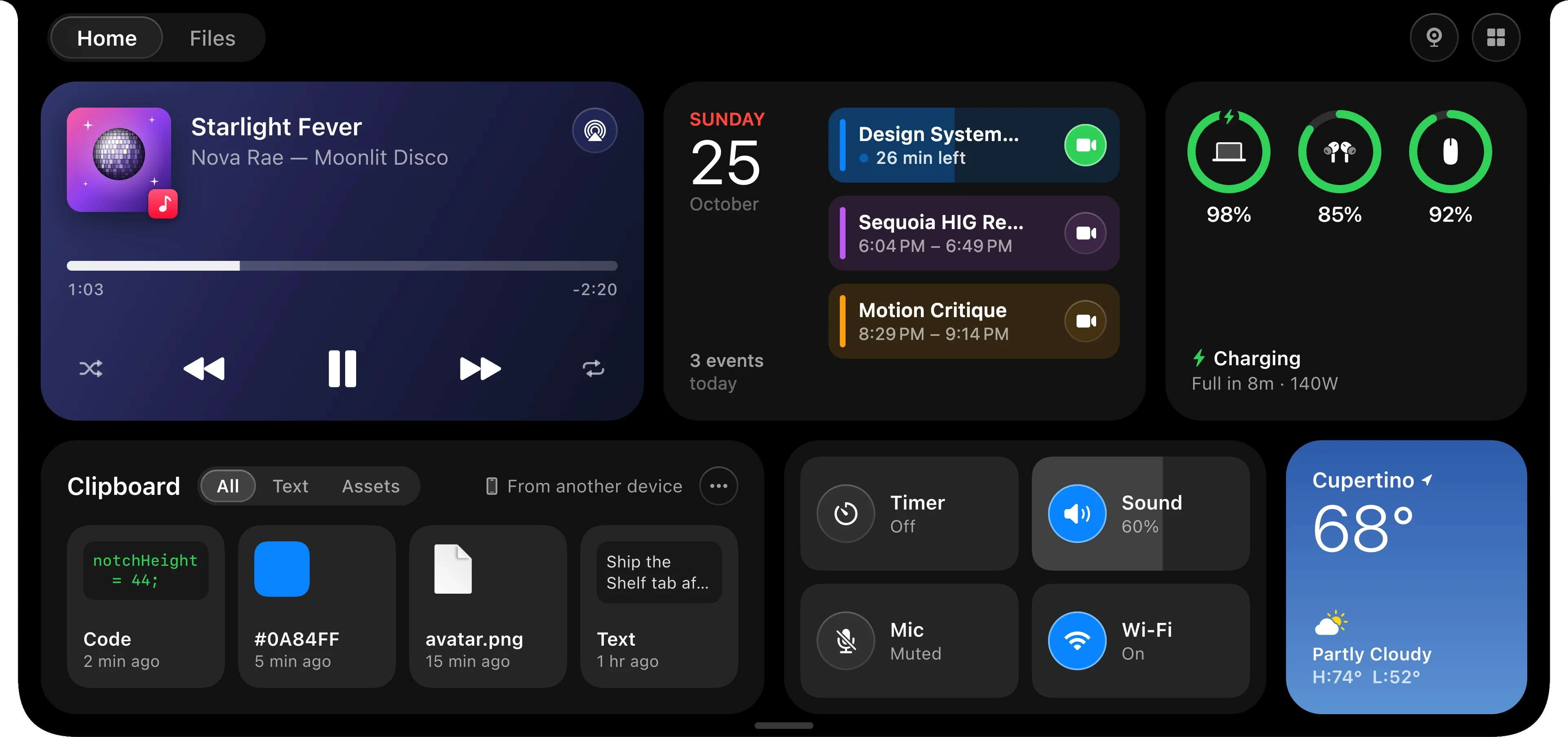
7/7 · Home
Then all of it, in one place.
Before
Music, your calendar and the weather, each in its own window.
After
Hover over the notch and Home opens: the day’s essentials, as cards you can reorder.
Music, with controls.
Your day, with Join.
Batteries, clipboard and quick controls, then the weather.
06User feedback
What people say.
“The design feels like something Apple should have built into macOS.”
“Such a simple idea, but it makes a huge difference in my daily workflow.”
“The notch feature is surprisingly useful. Nice attention to detail.”
“Finally, something that helps me focus instead of adding more clutter.”
“I was skeptical at first, but now I use it pretty much every morning.”
“One of those apps you don’t realize you need until you start using it.”
From emails customers sent me.
07Development
Built with Claude Code.
I designed it, and Claude Code was my engineering partner: I decided how each screen looks and behaves, and it wrote the Swift with me.
Each change was a short loop: describe it, review the code, try it on my Mac, adjust. The same loop built the website.
126Commits.
32,000Lines of Swift, in SwiftUI and AppKit.
08Outcomes
304Licences sold.
$9.99Once, for three Macs, on macOS 14 and later.
09Learnings
01Start from your own problem
Being my own first user made every trade-off easier to judge.
1Tasks firstWhat people come to do, before anything else.
2Scan, then readTopics, dates and actions at a glance.
3One set of blocksEvery page built from the same parts.
04Information architecture
From three lists sorted by owner to two menus sorted by need.
I sorted everything again by what people come to do. Switch between Before and After to see where each old link went.
Explore full screen
Explore full screen
KeptAlready about one thing, so they stay, under clearer names.Benefits & Pay → Pay & Benefits, Career → Career Development, Company, Wellness, Safety → Safety & Security
GroupedThe departments were a third of all links; now they’re one group.10 departments → Organizations, Supply Chain → Operations, Manager Tools → People
Up frontUsed every day, so on the home page instead of in a menu.Employee Tools → Tools, Service Desk → IT help, News, Employee Directory → Search
NewSplit out, so no group runs past eleven links.Retirement, Time Off & Leave, Everyday tasks
Off the menusFor one team, tool or campaign, not for everyone.Community, Volunteer, Company Store, Employee Posters, Internal Comms, NERC, CSI, Financial Dashboard, Visitor Check-in, MyService Hub
The menus, open
Each menu opens on five groups, with every link in view: no second level to dig through.
Try it full screen
05Low-fidelity wireframes
Four page types, wireframed first.
What comes first on each page, settled before any visual design.
Home
Latest updates
Events
News hub
06Design system
Close to 150 components, one system.
Tags for topics, date tiles, buttons, cards and rows: each part does one job and looks the same wherever it appears.
Explore full screen
Colour
Navy#173464The header, main buttons and selected filters.
Orange#F58113Today, unread, and what needs action.
Ink#0D1D37Text.
Link#002C73Links.
Teal#045969Wellness, operations and IT topics.
Alert#D50000Action required.
Tokens
One type family, Roboto, in seven sizes. Spacing runs 2 to 32, corners 4 to 12, and focus is always a visible ring.
Explore full screen
States
Every part has the same four states: default, hover, focus and disabled, plus the states that matter to it, like read and unread, or registered.
Explore full screen
07High-fidelity designs
1/7 · Sorted by department
Start the day from your tasks, not the org chart.
Before
The menu lists departments, and the tools sit in a column of banners, each in its own style.
After
The page opens with a greeting and what people come to do.
Explore full screen
Explore full screen
Eight everyday tasks first: leave, time off, pay, W-2 and more.
One story at the top, in place of two banners and a slider.
Popular tools, events, updates and IT help in one column.
2/7 · The slider comes first
One story leads; the rest are ranked and sorted.
Before
The top of the page is a slider: one story at a time, eight slides deep. Under it, news is a column of long posts with nothing to sort by.
After
The news hub has a front page, the way a newspaper does.
Explore full screen
Explore full screen
One featured story, with who wrote it and how long it takes to read.
The week’s top stories, numbered.
Topics as tabs, with a count on each.
3/7 · News you have to read
Updates you can scan, and what needs action kept in view.
Before
Open enrollment, a PTO deadline and a policy change all read like news, and the date is somewhere in the text.
After
Each update has a topic, a date and a one-line summary.
Explore full screen
Try it full screen
Topics with counts, and unread updates marked.
What needs action, listed again on the side.
A weekly email for anyone who would rather not check.
4/7 · No place for dates
Every date in one calendar, with the next step beside it.
Before
On the old home page, paydays, townhalls and trainings are news posts: no calendar, nothing to add to yours, nothing to register for.
After
Townhalls, paydays, learning and community events, together in one place.
Explore full screen
Try it full screen
Filters for pay, learning, community, wellness and holidays.
Register, Sign up or Start enrollment, right on the event.
Next payday, next holiday and the enrollment deadline at a glance.
5/7 · Pages of links
Department pages built from the same blocks.
Before
Corporate Support Services is a big photo and a list of links with one-line descriptions, laid out by whoever owns it.
After
Every department page now has the same shape, so moving between them takes no relearning.
Explore full screen
Explore full screen
Section navigation across the top of every department.
A hero that says what the department does.
Every service as a card, with its one next step.
6/7 · Finding things
Search that answers, not a list of pages.
Before
On the old site, search was a box in the header. To find a tool or a person, most people went through the menus and department pages.
After
Search for “pay statement” and you get the pay statement, not a list of pages about it.
Explore full screen
Try it full screen
The best match first, with the action to take.
Results grouped into tools, pages, people and news.
Filters for each kind, and searches others use.
7/7 · Moving everyone over
Retire the old site without losing anyone.
Before
The old site counts down to launch, then says it is going away, explains what to do, and asks anyone still there why they came.
After
One button, Get started, takes people straight to the new CONNECT.
Explore full screen
Explore full screen
A countdown on the old site to launch day.
What’s changing, what to expect and what to do, in three lines.
A welcome at the top of the new home page, and a way to say what you think.
08On the phone
On the phone, two tabs instead of one long page.
Many people at CPS Energy work in the field, so the home page had to work one-handed. The tasks stay on top, and two tabs split the rest: Discover for stories, Resources for everything else.
Try it full screen
HomeSwitch the tabs to see both.
Explore full screen
MenuThe same two menus as on the desktop.
09Development
Built from blocks, first on AEM, then on Edge Delivery Services.
Each component became a block in the editor. Here is the Career page, built in three steps.
Explore full screen
1 · Add a block Pick one from the library and drop it where the line shows.
Explore full screen
2 · Fill it in Title, text, image and one button, with nothing to lay out by hand.
Explore full screen
3 · Arrange and publish The content tree shows the page as a stack of blocks, in order.
10Success metrics
Found itShare of people answering Yes to “Did you find what you were looking for today?”, the survey on the home page.
On timeShare of action-required updates, like open enrollment, done before their deadline.
Off legacyVisits still going to the old CONNECT, and why, from “Tell us why you’re here”.
11Learnings
01Design the blocks, not just the pages
With one set of components, a new page is mostly the right blocks in the right order.
Next stepRead the survey, page by page
Track the Yes answers on each page and fix the pages people leave with a No.
 First app
 July 2026
 12 Oct 2026
 Today
Today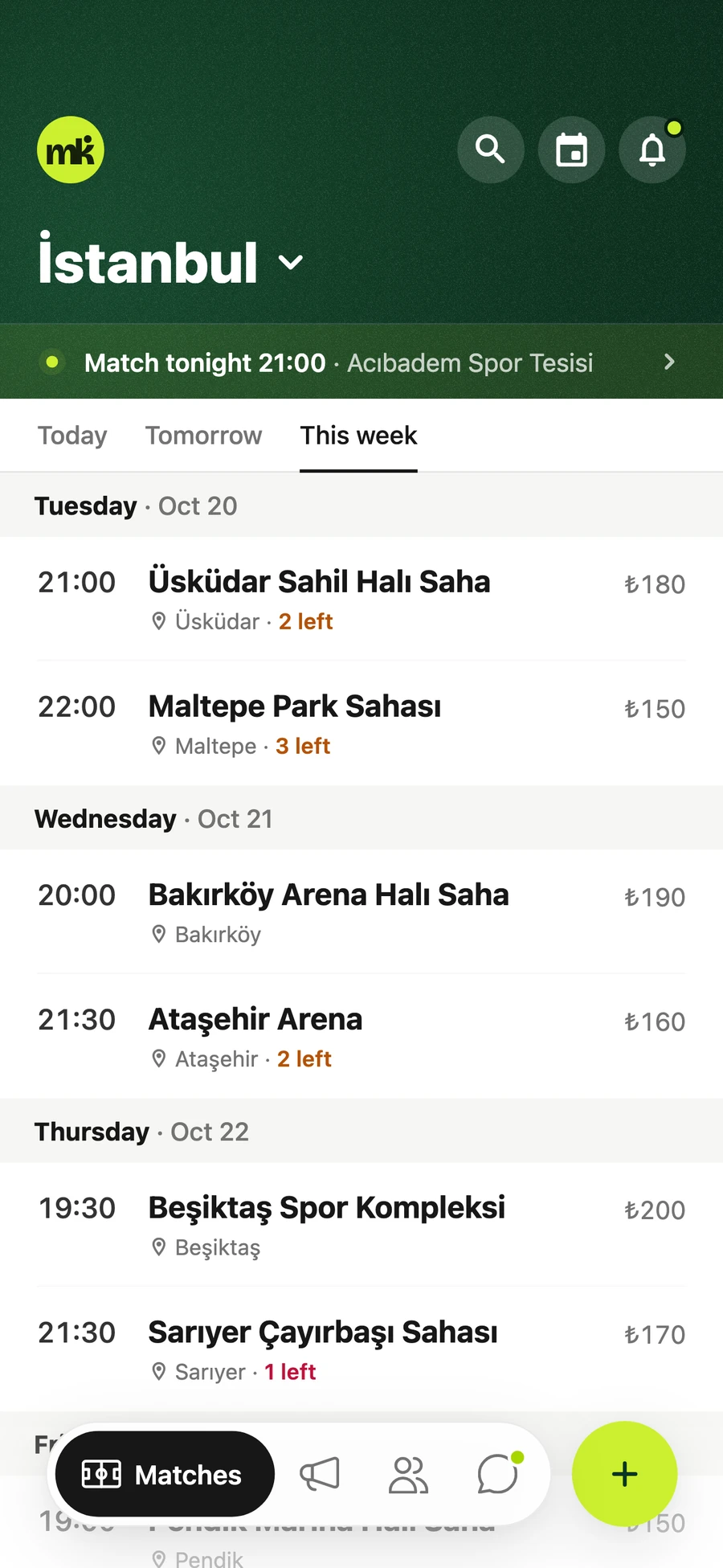
 Before
 A · The notch as a T
 B · The same T, light
 C · A lit notch
 D · Screen and notch
 E · The notch, opened
 F · A bar and a dot
 G · Bar and dot, light
 App icon
 Mark
Mark Two colours
 On dark